Getting Familiar
After installtion, now we need to get familar with Aurora.
Important
After installation please restart your session
After your first login, you should see Aurora's Welcome app. It will welcome you to the system everytime you log in.
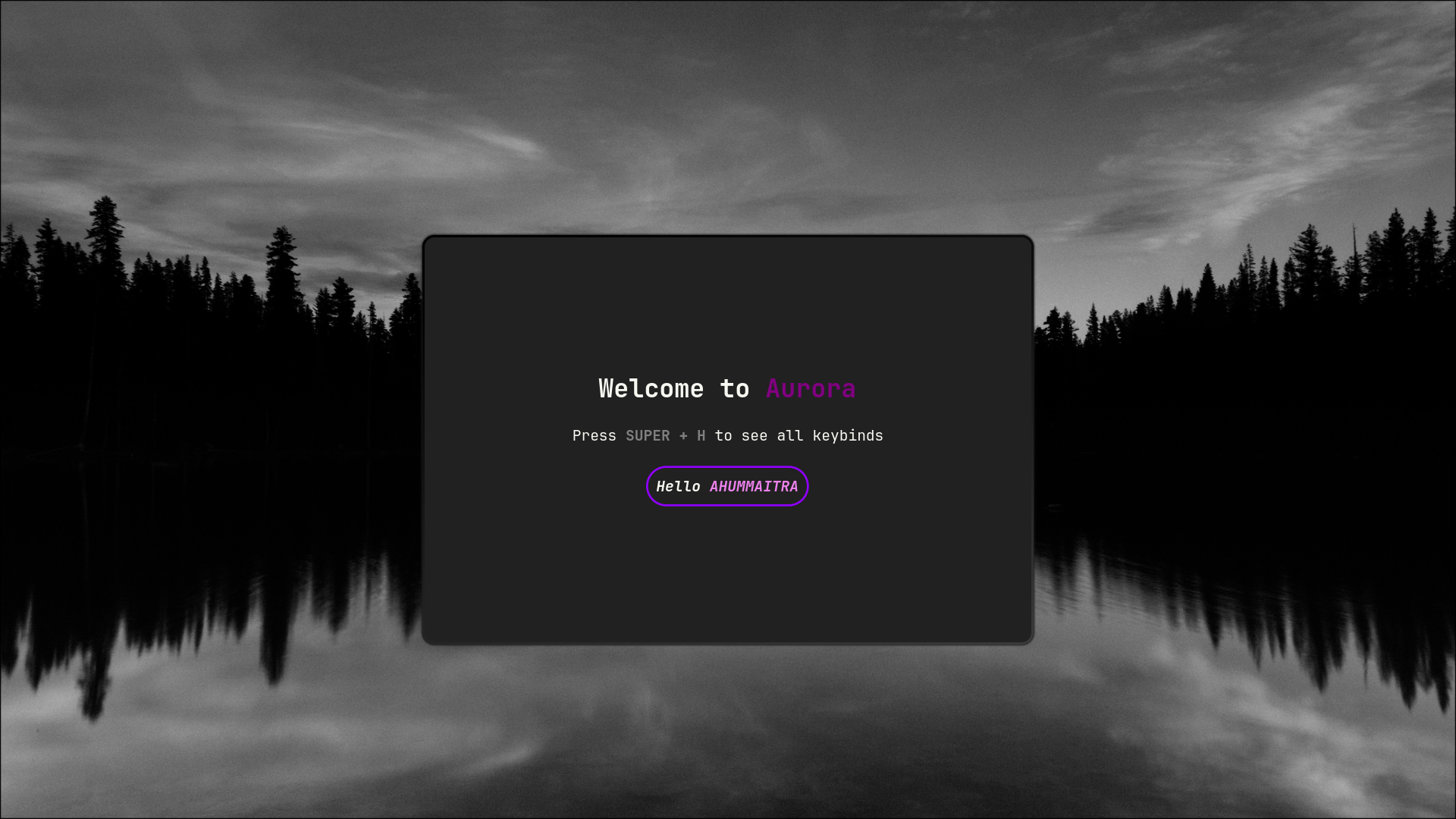
This is a gtk app. You can close this welcome app by pressing ESCAPE key.
Keybinds help
As you can see, you need to know some keybinds to get familiar. Press SUPER + H to launch keybinds help app. It will guide you with keybinds.
Important
Super key mean Window key on your keyboard
Some crucial keybinds
| Keybind | Action |
|---|---|
SUPER + H |
To open the keybinds help app |
SUPER + R |
to launch app launcher |
SUPER + Q |
To launch default terminal |
SUPER + C |
To close active window |
If you are new to Hyprland, you may wonder what’s that in the top. It’s Waybar. It is very useful for Hyprland users. You can see currently it shows you the workspaces number (which is 10 in Aurora by default). It also shows clock (you can see calender by hovering it). Also volume level and battery percentage and wifi and bluetooth, etc.
TUIs in Aurora
Aurora comes with bunch of useful TUIs. Which are very useful.
Wifi Manager
wifitui
Bluetooth Manager
bluetui
Playback manager
wiremix
Weather Monitor
weathr
System resources monitor
bottom
Battery monitor
jolt
These TUIs helps Aurora to be more user friendly and aesthetic
You can view Aurora’s settings by pressing SUPER + SHIFT + Z
Important
Super key means the Window key in your keyboard